# 在 macOS 上部署 Silo
LLMS 索引: [llms.txt](/zh/llms.txt)
---
- [Object Storage Essentials](https://www.youtube.com/playlist?list=PLFOIsHSSYIK3WitnqhqfpeZ6fRFKHxIr7)
- [How to Connect to MinIO with JavaScript](https://www.youtube.com/watch?v=yUR4Fvx0D3E&list=PLFOIsHSSYIK3Dd3Y_x7itJT1NUKT5SxDh&index=5)
本页介绍如何在 Apple macOS 主机上部署 Silo,用于开发与评估。
Silo 分别为 Intel 与 Apple Silicon 发布 macOS 归档。当前项目 CI 在 Linux 上运行,不能据此建立 macOS 支持生命周期保证,因此已删除继承自上游、已经过时的“支持版本”清单。在生产使用前,请验证精确的操作系统版本与工作负载。
本步骤包含对 单机多盘 (SNMD) 和 单机单盘 (SNSD) 拓扑的指导,适用于早期开发和评估环境。
本指南没有验证 macOS 主机上的多机多盘(MNMD)分布式配置。
## 注意事项 {#id1}
### 检查清单 {#id2}
在执行本步骤前,请先阅读我们发布的硬件、软件和安全检查清单。
### 纠删码校验 {#id3}
MinIO 会根据拓扑中的节点和驱动器总数,自动为集群确定默认的 [纠删码](/zh/operations/concepts/erasure-coding/#minio-erasure-coding) 配置。 你可以在设置集群时配置按对象生效的 [parity](/zh/glossary/#term-parity),也可以让 MinIO 选择默认值(生产级集群默认为 `EC:4`)。
校验值决定了对象可用性与磁盘存储占用之间的关系。 可使用 MinIO [纠删码计算器](https://min.io/product/erasure-code-calculator) 选择适合你集群的纠删码校验级别。
虽然你可以随时更改纠删码校验设置,但以既有校验值写入的对象 **不会** 自动更新为新的校验设置。
## 步骤 {#id4}
### 1. 下载 Silo 二进制文件 {#minio}
从[下载与安装](/zh/download/#server)选择 Intel(`darwin_amd64`)或 Apple Silicon(`darwin_arm64`)归档。使用同一发布随附的校验和核验后,解压并安装 `minio` 兼容二进制:
```shell
tar -xzf minio_*_darwin_*.tar.gz
sudo install -m 0755 ./minio /usr/local/bin/minio
minio --version
```
本页原有 Homebrew 命令安装的是上游 MinIO formula,而不是 Silo,因此已经删除。
### 2. 启用 TLS 连接 {#tls}
你可以跳过此步骤,以在未启用 TLS 的情况下部署。 MinIO 强烈 *不建议* 在早期开发之外的场景中进行非 TLS 部署。
为 MinIO 创建或提供 [传输层安全 (TLS)](/zh/operations/network-encryption/#minio-tls) 证书,以自动启用 server 与客户端之间的 HTTPS 安全连接。
MinIO 要求私钥和公钥证书的默认文件名分别为 `private.key` 和 `public.crt`。 请将证书放入专用目录:
```shell
mkdir -p /opt/minio/certs
cp private.key /opt/minio/certs
cp public.crt /opt/minio/certs
```
MinIO 会根据操作系统/系统默认的受信任证书颁发机构列表来验证客户端证书。 若要启用对第三方证书或内部签发证书的验证,请将 CA 文件放入 `/opt/minio/certs/CAs` 目录。 CA 文件应包含从叶子证书到根证书的完整信任链,以确保验证成功。
有关为 MinIO 配置 TLS 的更具体指导,包括通过 Server Name Indication (SNI) 支持多域名,请参阅 [网络加密(TLS)](/zh/operations/network-encryption/#minio-tls)。
> [!DETAILS]- 早期开发环境证书
> 对于本地测试或开发环境,你可以使用 MinIO [certgen](https://github.com/minio/certgen) 生成自签名证书。 例如,以下命令会生成一组带有 IP 和 DNS Subject Alternate Names (SANs) 的自签名证书,这些 SAN 与 MinIO 服务端 主机关联:
>
> ```shell
> certgen -host "localhost,minio-*.example.net"
> ```
>
> 将生成的 `public.crt` 和 `private.key` 放入 `/path/to/certs` 目录,以为 MinIO 部署启用 TLS。 应用程序可以将 `public.crt` 作为受信任的证书颁发机构,从而在不禁用证书校验的情况下连接到 MinIO 部署。
### 3. 创建 MinIO 环境文件 {#id5}
在 `/etc/default/minio` 创建环境文件。 MinIO 服务将该文件作为 MinIO *以及* `minio.service` 文件所用全部 [环境变量](/zh/reference/minio-server/settings/#minio-server-environment-variables) 的来源。
请根据你的部署拓扑修改示例。
**单机多盘**
在开发和评估环境中使用 单机多盘 部署。 对于能够容忍节点停机带来数据丢失或不可用的小型存储工作负载,也可以使用该拓扑。
```shell
# Set the volumes MinIO uses at startup
# The command uses MinIO expansion notation {x...y} to denote a
# sequential series.
#
# The following specifies a single host with 4 drives at the specified location
#
# The command includes the port that the MinIO server listens on
# (default 9000).
# If you run without TLS, change https -> http
MINIO_VOLUMES="https://minio1.example.net:9000/mnt/drive{1...4}/minio"
# Set all MinIO server command-line options
#
# The following explicitly sets the MinIO Console listen address to
# port 9001 on all network interfaces.
# The default behavior is dynamic port selection.
MINIO_OPTS="--console-address :9001 --certs-dir /opt/minio/certs"
# Set the root username.
# This user has unrestricted permissions to perform S3 and
# administrative API operations on any resource in the deployment.
#
# Defer to your organizations requirements for superadmin user name.
MINIO_ROOT_USER=minioadmin
# Set the root password
#
# Use a long, random, unique string that meets your organizations
# requirements for passwords.
MINIO_ROOT_PASSWORD=minio-secret-key-CHANGE-ME
```
**单机单盘**
在早期开发和评估环境中使用 单机单盘(“Standalone”)部署。 MinIO 不建议在生产环境中使用 单机部署,因为节点或其存储介质丢失会导致数据丢失。
```shell
# Set the volume MinIO uses at startup
#
# The following specifies the drive or folder path
MINIO_VOLUMES="/mnt/drive1/minio"
# Set all MinIO server command-line options
#
# The following explicitly sets the MinIO Console listen address to
# port 9001 on all network interfaces.
# The default behavior is dynamic port selection.
MINIO_OPTS="--console-address :9001 --certs-dir /opt/minio/certs"
# Set the root username.
# This user has unrestricted permissions to perform S3 and
# administrative API operations on any resource in the deployment.
#
# Defer to your organizations requirements for superadmin user name.
MINIO_ROOT_USER=minioadmin
# Set the root password
#
# Use a long, random, unique string that meets your organizations
# requirements for passwords.
MINIO_ROOT_PASSWORD=minio-secret-key-CHANGE-ME
```
请根据部署需要,指定其他 [环境变量](/zh/reference/minio-server/settings/#minio-server-environment-variables) 或 server 命令行选项。
### 4. 启动 MinIO Server {#minio-server}
以下命令会启动附着在当前终端/shell 窗口上的 MinIO Server:
```shell
export MINIO_CONFIG_ENV_FILE=/etc/default/minio
minio server --console-address :9001
```
命令输出类似如下:
```shell
```
```shell
MinIO 对象存储服务端
Copyright: 2015-2024 MinIO, Inc.
License: GNU AGPLv3 - https://www.gnu.org/licenses/agpl-3.0.html
Version: RELEASE.2024-06-07T16-42-07Z (go1.22.4 linux/amd64)
API: https://minio-1.example.net:9000 https://203.0.113.10:9000 https://127.0.0.1:9000
RootUser: minioadmin
RootPass: minioadmin
WebUI: https://minio-1.example.net:9001 https://203.0.113.10:9001 https://127.0.0.1:9001
RootUser: minioadmin
RootPass: minioadmin
CLI: https://silo.pgsty.com/zh/reference/minio-mc/#quickstart
$ mc alias set 'myminio' 'https://minio-1.example.net:9000' 'minioadmin' 'minioadmin'
Docs: https://silo.pgsty.com/zh/docs/
Status: 1 Online, 0 Offline.
```
`API` 区块列出了客户端可访问 MinIO S3 API 的网络接口和端口。 `Console` 区块列出了客户端可访问 MinIO Web Console 的网络接口和端口。
若要在后台运行 MinIO server 进程或以守护进程方式运行,请参阅 macOS 文档中的最佳实践和操作步骤。
### 5. 连接到部署 {#id6}
**Console**
打开浏览器,并通过任一 MinIO 主机名的 `:9001` 端口访问 [MinIO Console](/zh/administration/minio-console/#minio-console) 登录页。 例如:`https://minio1.example.com:9001`。
使用上一步中的 **MINIO_ROOT_USER** 和 **MINIO_ROOT_PASSWORD** 登录。
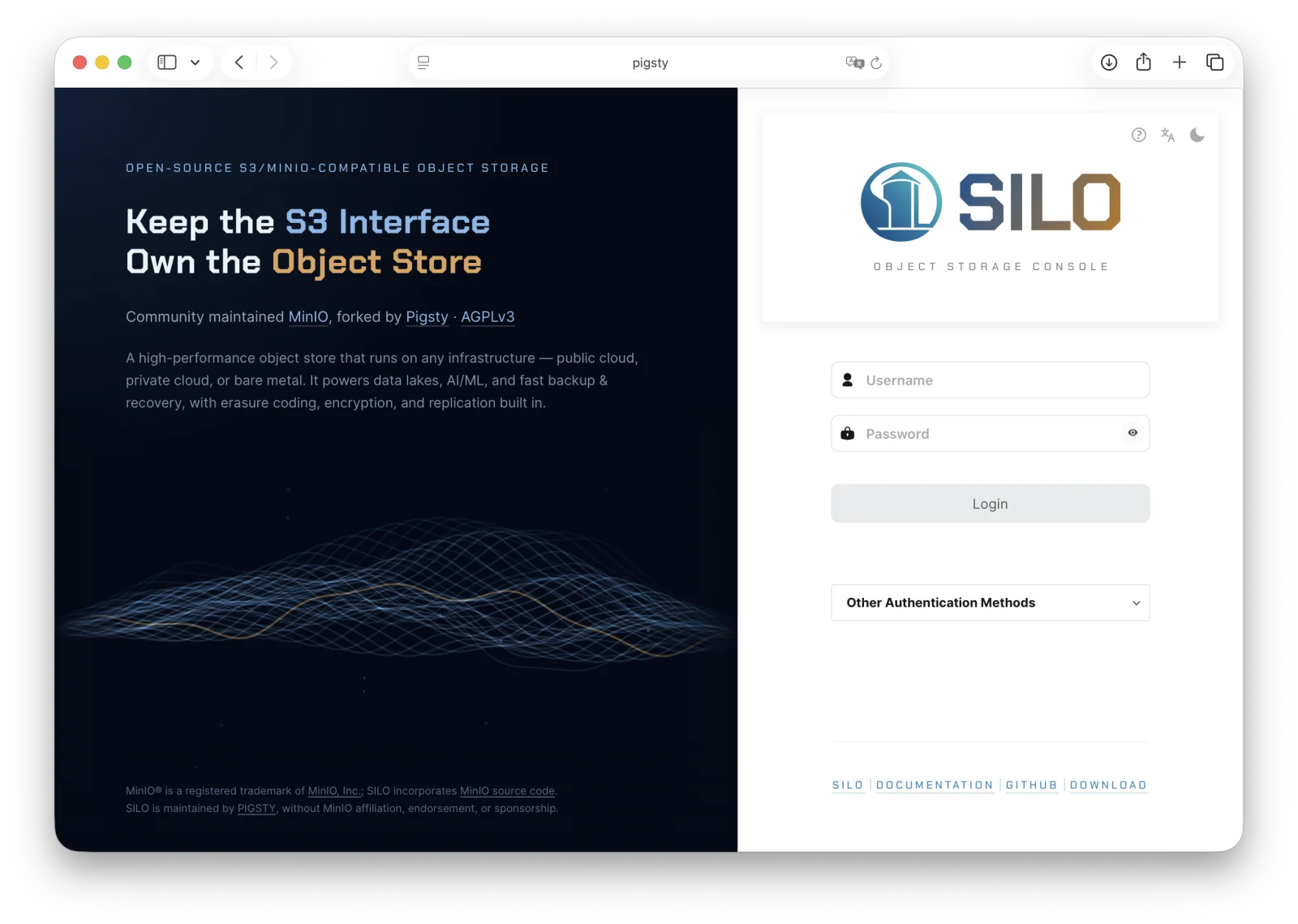 你可以使用 MinIO Console 执行常规管理任务,例如身份与访问管理、指标和日志监控,或 Server 配置。 每个 MinIO server 都包含自身内嵌的 MinIO Console。
**CLI**
请按照本地主机上的 `mc` [安装说明](/zh/reference/minio-mc/#mc-install) 完成安装。 运行 `mc --version` 验证安装结果。
如果你的 MinIO 部署使用第三方或自签名 TLS 证书,请将 CA 文件复制到 `~/.mc/certs/CAs`,以便 `mc` 信任该证书链。
安装完成后,为该 MinIO 部署创建一个别名:
```shell
mc alias set myminio https://minio-1.example.net:9000 USERNAME PASSWORD
```
请根据你的部署修改主机名、用户名和密码。 主机名可以是部署中的任意一个 MinIO 节点。 你也可以指定负责处理部署连接的负载均衡器、反向代理或类似网络控制平面的主机名。
### 6. 后续步骤 {#id7}
- 在可信开发网络之外暴露服务前,先[启用 TLS](/zh/operations/network-encryption/enable-minio-tls/)。
- 通过[身份与访问管理](/zh/administration/identity-access-management/)创建最小权限用户和策略。
- 在依赖该部署保存持久数据前,配置[监控与告警](/zh/operations/monitoring/)。
你可以使用 MinIO Console 执行常规管理任务,例如身份与访问管理、指标和日志监控,或 Server 配置。 每个 MinIO server 都包含自身内嵌的 MinIO Console。
**CLI**
请按照本地主机上的 `mc` [安装说明](/zh/reference/minio-mc/#mc-install) 完成安装。 运行 `mc --version` 验证安装结果。
如果你的 MinIO 部署使用第三方或自签名 TLS 证书,请将 CA 文件复制到 `~/.mc/certs/CAs`,以便 `mc` 信任该证书链。
安装完成后,为该 MinIO 部署创建一个别名:
```shell
mc alias set myminio https://minio-1.example.net:9000 USERNAME PASSWORD
```
请根据你的部署修改主机名、用户名和密码。 主机名可以是部署中的任意一个 MinIO 节点。 你也可以指定负责处理部署连接的负载均衡器、反向代理或类似网络控制平面的主机名。
### 6. 后续步骤 {#id7}
- 在可信开发网络之外暴露服务前,先[启用 TLS](/zh/operations/network-encryption/enable-minio-tls/)。
- 通过[身份与访问管理](/zh/administration/identity-access-management/)创建最小权限用户和策略。
- 在依赖该部署保存持久数据前,配置[监控与告警](/zh/operations/monitoring/)。