Using Silo with Veeam
When using Veeam Backup and Replication, you can use S3-compatible object storage such as Silo as a capacity tier for backups. This disaggregates storage for the Veeam infrastructure and allows you to retain control of your data. Silo’s straightforward setup and administration let a Veeam backup administrator deploy an object store for capacity tiering.
Prerequisites
- One or both of Veeam Backup and Replication with support for S3 compatible object store (e.g. 9.5.4) and Veeam Backup for Office365 (VBO)
- Silo object storage set up according to the deployment procedure
- Veeam requires TLS connections to the object storage. Configure TLS using the network encryption guide.
- The S3 bucket, Access Key and Secret Key have to be created before and outside of Veeam.
- Configure the Silo client for the Veeam Silo endpoint using the
mccommand reference.
Setting up an S3 compatible object store for Veeam Backup and Replication
Create a bucket for Veeam backups
Create a bucket for Veeam Backup, e.g.,
NOTE: For Veeam Backup with Immutability, create the bucket with object lock enabled, e.g.,
Object locking requires erasure coding on the silo server. See the erasure coding documentation for more information.
Add Silo as an object store for Veeam
Follow the Veeam documentation for adding S3-compatible object storage: Add Object Storage.
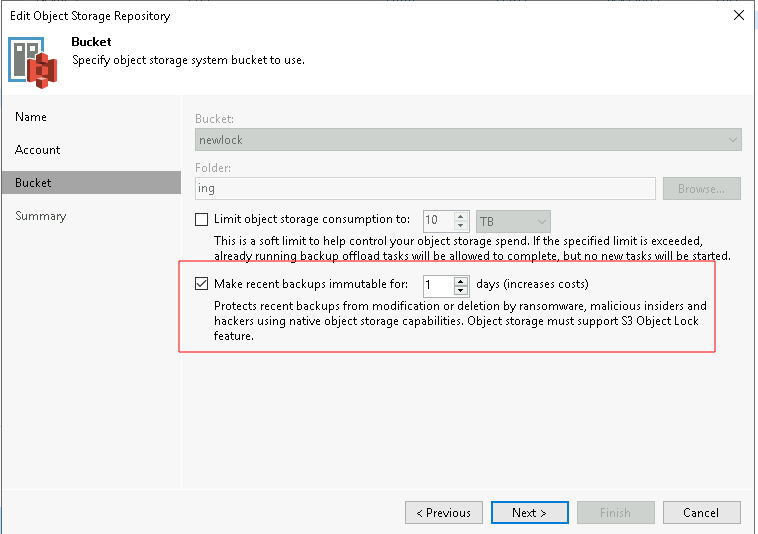
For Veeam Backup with Immutability, choose the amount of days you want to make backups immutable for
Creating the Scale-out Backup Repository
- Under the Backup Infrastructure view, click on Scale-out Repositories and click the Add Scale-out Repository button on the ribbon.
- Follow the on screen wizard
- On the Capacity Tier screen, check the box to Extend scale-out backup repository capacity with object storage checkbox and select the object storage. If you want to be able to test backup data immediately after a job is run, under the object storage selection, check the “Copy” box and uncheck the “Move” box.
Create a backup job
Backup Virtual Machines with Veeam Backup and Replication
- Under Home > Jobs > Backup in Navigation Pane, click on Backup Job button in the ribbon and choose Virtual Machine. Follow the on screen wizard.
- On the Storage screen, choose the Scale-out Backup Repository that was configured previously.
- Continue with the backup job creation. On the Summary screen, check the Run the Job when I click Finish checkbox and click the Finish button. The backup job will start immediately. This will create an Active Full backup of the VMs within the backup job.
- Since we selected Copy mode when creating the SOBR, the backup will be copied to the capacity tier as soon as it is created on the performance tier.
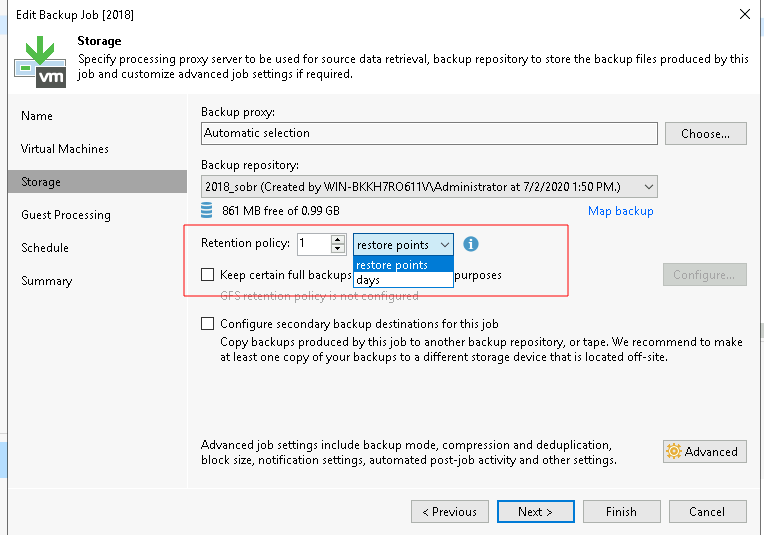
- For Veeam Backup with Immutability, you can choose a number of restore points or days to make backups immutable.
Backup Office 365 with VBO
- Create a new bucket for VBO backups
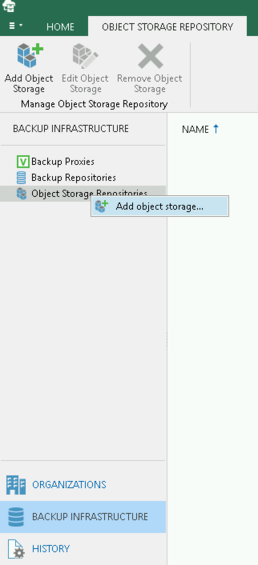
- Under Backup Infrastructure, right click on Object Storage Repositories and choose “Add object storage”
- Follow through the wizard as above for Veeam Backup and Replication as the steps are the same between both products
- Under Backup Infrastructure -> Backup Repositories, right click and “Add Backup Repository”
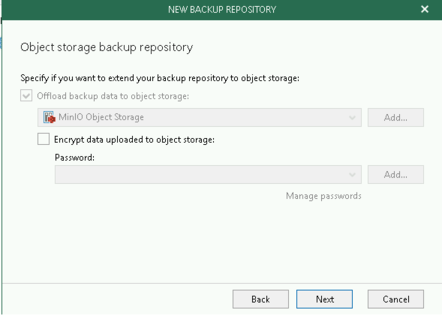
- Follow the wizard. Under the “Object Storage Backup Repository” section, choose the Silo object storage you created above
- When you create your backup job, choose the backup repository you created above.
Test the setup
The next time the backup job runs, you can use the mc admin trace myminio command and verify traffic is flowing to the Silo nodes. For Veeam Backup and Replication you will need to wait for the backup to complete to the performance tier before it migrates data to the Silo capacity tier.